 COME
An Interrupted COME Transfer or an In-App Network Issue?
A stopped browser transfer and a network error inside an app happen at different stages. Check where the message appears before deciding what to retry.
Check whether a file has finished arriving
Use the browser’s download history to see whether the transfer is complete, paused or failed. A page that loaded successfully does not mean the APK finished transferring. Check available storage and preserve the error wording before starting another copy.
Read the in-app help in its own context
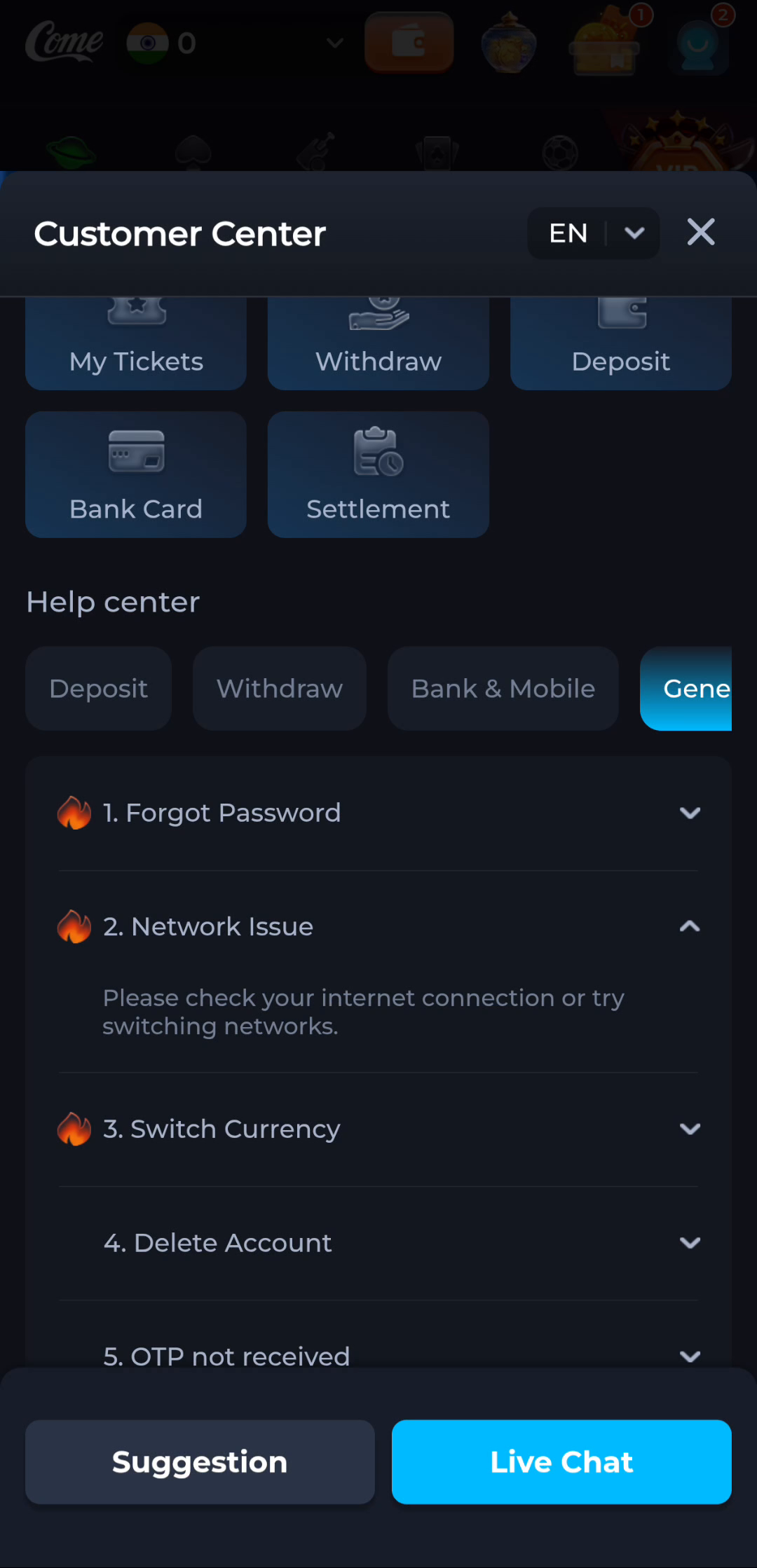
The Network Issue topic in COME Customer Center suggests checking the connection or trying another network. This can help investigate connectivity inside the service. It does not explain an Android package conflict or establish that a downloaded file is complete.
Use one controlled retry
After addressing the observed connection or storage problem, repeat only the stage that failed. Repeatedly tapping the entry button may create several browser tabs or transfers without changing the cause. Keep track of the file you intend to inspect.
Leave a working installation intact
If the installed app opens but a page inside it cannot load, do not begin by uninstalling. Note whether the problem affects one screen or the whole service. If Android has blocked a file, keep its protections enabled and investigate the warning separately.
Prepare a useful support note
Include the stage, time, connection type and exact message. Do not include passwords, one-time codes or full payment information. A note saying that a transfer failed at the browser stage is more actionable than a general statement that the app does not work.