 COME
COME Update Checklist for an Existing Android Installation
For an existing COME installation, work through four checks: what is installed, how you will regain account access, what file is offered and what changed after installation.
Record the current installation
Note the version shown in Android app information if available and the task you hope an update will address. A network problem, an account issue and an outdated release can look similar from the first screen, so do not assume that every fault requires a new APK.
Read the update response
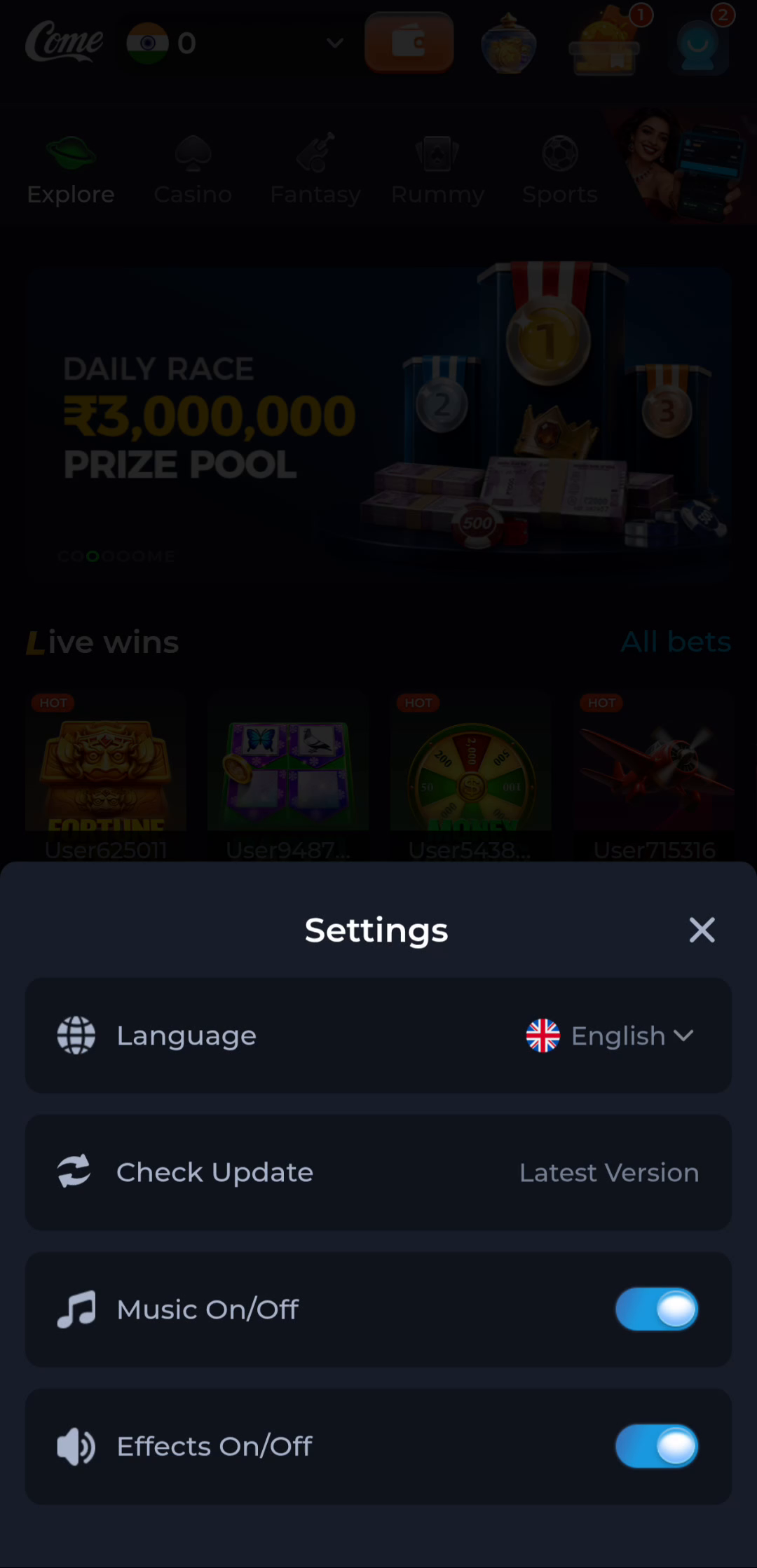
Open the relevant update control in your app. The Settings example includes Check Update, but its displayed status belongs to that screen. Read the message on your own device and keep it separate from a numbered version comparison.
Retain account access
Before changing an installation, confirm you can use the normal sign-in or recovery method. Keep the working app available while checking the proposed file. Avoid clearing data, logging out or removing the app as a routine first step.
Inspect the replacement file
Check the source and app identity, then compare the offered release information. Read Android prompts and any protection warning. If a mismatch prevents installation, do not remove the original merely to make the new package fit.
Confirm the outcome
Open the app after a completed update and check the version and relevant function. If only a browser page opened, installation may not have changed. Keep the source address and exact error if the update remains unresolved so support can investigate a specific stage.